
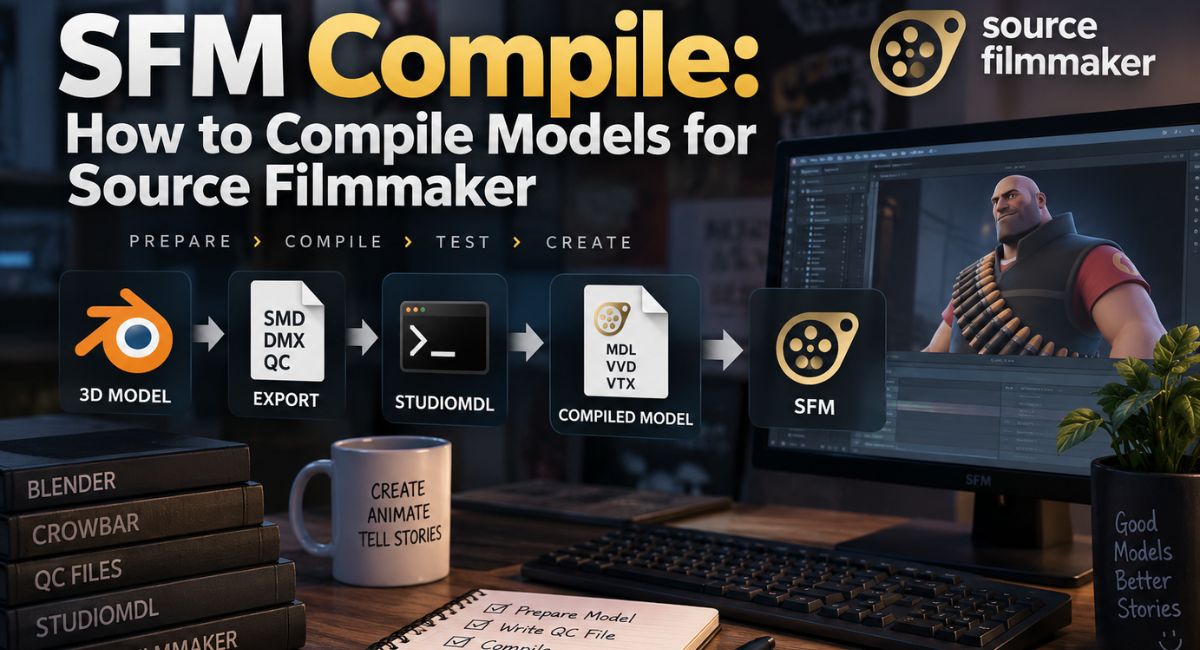
SFM Compile: How to Compile Models for Source Filmmaker
Trying to understand SFM compile can become frustrating fast. While researching this workflow, I noticed the same pain points recurring. A model may look perfect in Blender but fail in Source Filmmaker. Crowbar may show an error, textures may turn purple and black, or a character may appear in a T-pose. The hardest part for beginners is often not fixing the problem. It is finding which stage caused it.
After reviewing the Source model pipeline, StudioMDL documentation, Crowbar workflows, QC files, and common troubleshooting cases, I found that compilation becomes much easier when treated as a series of clear steps. This guide explains those steps so you can prepare, compile, test, and troubleshoot custom SFM models with more confidence.
Important: This Guide Covers Source 1 SFM
This guide is about the Source Filmmaker, which runs on the Source engine’s Alien Swarm branch. Source 2 Filmmaker is a separate tool with a different asset workflow. Do not mix Source 2 tutorials, formats, or tool instructions with this Source 1 compilation process.
How This Guide Was Checked
The technical workflow in this guide was cross-checked against Valve Developer Community documentation for StudioMDL, HLMV, Source Filmmaker, compiled model files, and Source model behavior. Crowbar setup and compiler behavior were also checked against its official project and source code.
Source tools can vary between engine branches. Therefore, branch-specific compiler output should take priority if it differs from a general tutorial.
What Is SFM Compile?
SFM compile is the process of converting prepared 3D model data into files that Source Filmmaker and the Source engine can understand.
A Blender project is not a finished Source model. You normally export the required model data and then process it through a Source model compiler.
A simple pipeline looks like this:
3D model → SMD/DMX → QC file → StudioMDL → compiled Source model → SFM
The QC file tells the compiler how the model should be built. StudioMDL then processes the source files and creates the compiled model package.
Valve documents MDL, VVD, VTX, and optional PHY and ANI files among StudioMDL’s outputs.
What Model Compilation Actually Does
Compilation can process model information such as:
- Mesh geometry
- Bones
- Skeleton structure
- Skin weights
- Animation sequences
- Material references
- Collision data
- Surface properties
- Bodygroups
- Hitboxes
- Attachments
- LOD information
The result is data arranged in a structure the Source engine can load.
Source Files vs Compiled Model Files
| File | Stage | Main Purpose |
| SMD | Source/input | Mesh, bones, or skeletal animation |
| DMX | Source/input | Structured model and animation data |
| VTA | Source/input | Vertex/flex animation data |
| QC | Source/input | Main compiler instructions |
| QCI | Source/input | Included/reusable QC instructions |
| VMT | Material | Source material definition |
| VTF | Material | Texture data |
| MDL | Compiled/output | Core compiled model information |
| VVD | Compiled/output | Hardware-independent vertex and UV data |
| VTX | Compiled/output | Render-path-specific optimized mesh data |
| PHY | Optional output | Collision mesh information |
| ANI | Optional output | External animation data in some setups |
Valve states that a .phy file is omitted when no $collisionmodel is defined. An .ani file may be created when $animblocksize is used.
A QCI file can help separate reusable or specialized instructions from the main QC. For example, HLMV documentation shows generated hitbox commands being stored in a separate hitboxqci file.
A Source Model Is More Than One MDL File
A common beginner mistake is thinking that the MDL file contains everything.
In practice, a normal Source model often works as a package.
The MDL contains important model information, while VVD and VTX files provide supporting vertex and rendering data. Some models may also include PHY or ANI files.
Valve’s StudioMDL documentation describes several VTX variants, including DirectX-specific outputs. The exact files can vary by Source branch and target environment.
Why Does Source Filmmaker Need Compilation?
Source Filmmaker uses the Source engine’s asset pipeline.
It does not directly understand an entire Blender project.
A Blender file may contain:
- Modifiers
- Meshes
- Materials
- Armatures
- Cameras
- Lights
- Shape data
- Animation tracks
- Blender-specific settings
The useful data must be prepared in formats the Source model compiler understands.
That is why a model can look completely correct in Blender but still fail inside SFM.
The real problem may be:
- Export format
- QC configuration
- Skeleton
- Skin weights
- Material paths
- Folder paths
- Animation references
- Compiler setup
- Source branch mismatch
The visible model is only one part of the pipeline.
SFM Compilation vs Exporting vs Rendering
These three processes are related, but they are not the same.
| Process | Purpose | Example |
| Exporting | Creates Source-compatible intermediate data | Blender → SMD |
| Compiling | Builds engine-ready model files | SMD + QC → MDL package |
| Rendering | Creates the final image/video | SFM scene → video |
Exporting
Exporting moves useful data out of your 3D software.
For example, you may export:
- Reference mesh
- Skeleton
- Animation
- Flex data
into SMD, DMX, or another supported intermediate format.
Compiling
Compilation takes those files plus the QC script and converts them into a Source model.
Rendering
Rendering happens after your assets are already working in SFM.
It uses:
- Camera
- Lighting
- Models
- Animation
- Effects
- Timeline
- Scene elements
to create the final visual output.
A model compilation error is therefore different from an SFM rendering problem.
What You Need Before Compiling an SFM Model?
Before beginning, make sure your basic toolchain is ready.
| Tool or File | Purpose |
| Source Filmmaker | Final use and testing |
| Blender or another 3D program | Model preparation |
| SMD/DMX exporter | Export Source-compatible data |
| Text editor | Write/edit QC files |
| StudioMDL | Actual Source model compiler |
| Crowbar | Graphical workflow around Source modding tools |
| VMT/VTF files | Materials and textures |
| HLMV | Inspect compiled Source models |
Crowbar describes itself as a GoldSource and Source Engine modding tool. Its compile code uses a selected game setup, compiler path, game path, and QC input when running StudioMDL.
SMD vs DMX for SFM Compilation
Both SMD and DMX appear in Source model workflows.
SMD Files
SMD is a traditional Source intermediate format.
Depending on the export, it can contain:
- Reference geometry
- Bones
- Vertex weights
- Skeletal animation
Many older Source tutorials use SMD heavily.
DMX Files
DMX is a more structured data format.
StudioMDL supports DMX for several Source model data types, including model and animation workflows.
SMD vs DMX
| Use | SMD | DMX |
| Reference mesh | Supported | Supported |
| Skeletal animation | Supported | Supported |
| Common older tutorials | Very common | Less common |
| Facial/flex workflow | Often paired with VTA or other tool workflows | Supports flex/vertex workflows |
| Structured Source data | Traditional format | More feature-rich |
Neither format is automatically “better.”
Use the one supported correctly by your exporter, target Source branch, and asset workflow.
Understanding the QC File
The QC file is one of the most important parts of model compilation.
It is a text-based script that tells StudioMDL how the model should be built.
A QC may define:
- Output model path
- Mesh files
- Material directories
- Animation sequences
- Physics
- Surface properties
- Bodygroups
- Skins
- Hitboxes
- Attachments
- LOD models
- Other model settings
Important QC Commands
| QC Command | Purpose |
| $modelname | Sets the compiled model name/path |
| $body | Adds model geometry |
| $model | Defines model geometry with advanced options |
| $cdmaterials | Sets material search paths |
| $sequence | Defines animation sequences |
| $surfaceprop | Sets surface behavior |
| $collisionmodel | Defines collision geometry |
| $bodygroup | Defines alternate mesh parts |
| $texturegroup | Defines alternate skins |
| $attachment | Defines attachment points |
| $hbox | Defines hitboxes |
| $lod | Defines level-of-detail models |
A simple example may look like:
$modelname “custom/character.mdl”
$body “Body” “character_reference.smd”
$cdmaterials “models/custom/”
$sequence “idle” “idle.smd” loop fps 30
A production-ready character may require many more commands.
How to Compile an SFM Model Step by Step
A structured workflow makes troubleshooting much easier.
Step 1: Prepare the Model
Before export, inspect the source asset.
Look for:
- Clean mesh geometry
- Correct orientation
- Correct scale
- Proper UV mapping
- Correct normals
- Useful material names
- Valid skeleton
- Clean skin weights
- Correct reference pose
Also check for:
- Duplicate vertices
- Flipped normals
- Broken faces
- Non-manifold geometry
- Hidden unused geometry
Fixing these problems before export is easier than diagnosing them after compilation.
Step 2: Validate the Skeleton
For characters, the skeleton is critical.
Review:
- Bone names
- Parent-child relationships
- Root bone
- Reference pose
- Skin weights
- Animation compatibility
Make sure vertices are assigned to the intended bones and that exported weights are valid for your workflow.
If the character already deforms badly in Blender, compilation will not automatically repair the rig.
Step 3: Export the Model
Export the required model data as SMD or DMX.
The exact process depends on your modeling software and exporter.
The goal is to create clean source data containing the model information needed by Source.
Step 4: Export Animations or Flex Data
Animated models may need separate animation files.
Facial animation may use VTA or DMX data depending on the workflow.
Do not assume that exporting the reference mesh automatically includes every animation or flex you need.
How SFM Textures and Materials Work
Source uses its own material system.
A clearer material workflow is:
Source image → VTF texture + VMT material definition → model material reference
The VTF stores texture data.
The VMT defines how Source should use that texture and other material properties.
A model can compile successfully while its materials are still broken.
Common Material Problems
| Problem | Possible Cause | Check |
| Purple/black checkerboard | Missing texture/material | VMT, VTF, paths |
| Gray model | Material is not loading correctly | VMT configuration |
| Texture loads but looks wrong | Wrong shader/material parameters | VMT settings |
| Texture is missing on one part | Wrong mesh material assignment | Source mesh/material names |
| Wrong texture appears | Naming/path conflict | VMT/VTF locations |
| Transparency fails | Material configuration | VMT parameters |
Step 5: Prepare VMT and VTF Files
Place materials in the correct Source material folder.
Make sure:
- VMT references are correct.
- VTF files exist.
- Names match.
- Folder paths match the QC/material configuration.
- Capitalization is consistent where relevant.
Do not assume that keeping the original PNG or JPG beside the model is enough.
Step 6: Write the QC File
Once the source model, animations, and materials are ready, create the QC script.
Keep paths clear and simple.
Avoid changing several QC commands at once when debugging.
Small changes make errors easier to trace.
Step 7: Configure the Correct Compiler
Use the StudioMDL executable and game configuration that match the Source branch or game environment you are targeting.
When using Crowbar, verify:
- Game setup
- Compiler path
- Game path
- gameinfo.txt
- QC file
- Output setup
Crowbar checks whether the selected compiler and game configuration exist before compiling. Its code also reports when the selected compiler appears incorrect for the chosen game.
Step 8: Compile With StudioMDL or Crowbar
StudioMDL is the actual model compiler.
Crowbar provides a graphical interface that makes the workflow easier.
A simple Crowbar process is:
- Open Crowbar.
- Choose Compile.
- Select the correct game setup.
- Select your QC file.
- Confirm the compiler.
- Start compilation.
- Read the output.
- Inspect generated files.
Do not assume success only because an MDL file appears.
Read important warnings too.
Step 9: Read the Compiler Log
When compilation fails, start with the first useful error.
Later messages may simply be caused by the first failure.
Check for:
- Missing SMD/DMX
- Missing QC file
- Wrong filename
- Bad directory
- QC syntax problem
- Compiler mismatch
- Missing material path
- Invalid source data
Fix one problem.
Then compile again.
Crowbar can save compiler output to compile-log files, which makes it easier to review what happened.
Step 10: Install the Model Files
Compiled models normally belong under the correct game’s models directory.
Materials belong under the correct materials directory.
A simple example is:
| Folder | Example Files |
| models/custom/ | MDL, VVD, VTX, PHY |
| materials/models/custom/ | VMT, VTF |
Your QC and material paths must agree with the real folder structure.
A model can compile successfully yet fail to appear because it was installed in the wrong place.
Step 11: Test the Compiled Model
Do not test only whether it appears.
Inspect:
- Mesh
- Textures
- Scale
- Skeleton
- Skin weights
- Animations
- Facial controls
- Bodygroups
- Skins
- Attachments
- Collision setup
Compilation is a build stage, not the final quality check.
How to Test a Compiled Model With HLMV
Half-Life Model Viewer, or HLMV, is useful for inspecting Source models.
Valve lists features including:
- Vertex weighting display
- Animation blending
- Pose parameters
- LOD models
- Flex animations
- Hitbox tools
- Attachment tools
- Physics-related QC generation
HLMV Testing Checklist
| Area | What to Inspect |
| Mesh | Missing or broken geometry |
| Materials | Correct visual appearance |
| Bones | Correct hierarchy |
| Weights | Bad deformation |
| Animations | Correct playback |
| Flexes | Expected facial controls |
| Hitboxes | Size and placement |
| Attachments | Position and bone connection |
| LOD | Correct level switching |
| Collision/physics | Inspect available setup, then confirm behavior in the intended environment |
HLMV versions differ between Source engine branches. A feature visible in one game’s HLMV may not appear in exactly the same way in another version.
Common SFM Compile Errors and How to Fix Them
StudioMDL Cannot Find the QC or SMD File
This is often a file or path problem.
Verify:
- Exact filename
- Extension
- QC reference
- Directory
- Export location
- Spelling
Keep filenames simple when possible.
Model Compiles but Does Not Appear in SFM
Check whether:
- The MDL exists.
- Supporting files were created.
- The model is inside the right folder.
- $modelname points to the expected location.
- You compiled for the correct Source environment.
- SFM has refreshed or restarted if required.
Purple and Black Checkerboard Textures
This usually means Source cannot locate or load a required material.
Review:
- VMT
- VTF
- $cdmaterials
- Texture name
- Folder path
- Material reference
Model Appears Completely Gray
The model may exist while its material is not working correctly.
Inspect the VMT and material path first.
Model Appears, but Some Parts Are Missing
Check:
- $body
- $model
- $bodygroup
- Mesh export
- Source-file references
- Material assignment
A missing part is not always a failed compile.
Model Loads in a T-Pose
A T-pose often points toward animation or skeleton problems.
Inspect:
- Bone hierarchy
- Reference pose
- Animation files
- $sequence
- Export settings
- Skeleton compatibility
Animations Do Not Play
Verify:
- Correct animation file
- Matching skeleton
- Correct $sequence
- Expected FPS
- Loop settings
- Exported frames
Bones or Mesh Deform Incorrectly
Possible causes include:
- Bad skin weights
- Bone mismatch
- Wrong reference pose
- Export problem
- Incorrect hierarchy
Return to the source model and validate it before changing random QC settings.
Model Scale Is Wrong
Correct the scale during model preparation and export.
Do not depend on SFM to repair an incorrectly prepared source model.
Collision or Physics Does Not Work
A PHY file is not required for every model.
Valve’s StudioMDL documentation states that PHY output is omitted when no $collisionmodel is defined.
Review:
- Collision mesh
- $collisionmodel
- Intended model behavior
- Prop type
- Surface settings
How to Read SFM Compiler Errors Correctly
Compiler output can look intimidating.
Use this order:
- Find the first meaningful error.
- Verify the referenced file.
- Verify the directory.
- Compare the QC path.
- Check spelling.
- Inspect QC syntax.
- Verify your exported asset.
- Fix one issue.
- Compile again.
This approach is faster than changing several unrelated settings.
SFM Compile for Static Props
Props are generally simpler than animated characters.
A basic prop may use:
- Mesh
- UVs
- Materials
- QC file
- Optional collision model
However, do not add $staticprop automatically to every SFM prop.
In broader Source game workflows, $staticprop is intended for models used as static prop entities. Static-prop compilation can remove or collapse behavior that an animated model needs. Models requiring skeletal animation should not be treated as static props by default.
For SFM-focused work, compile based on what the asset actually needs.
SFM Compile for Custom Characters
Characters require more systems to work together.
A basic workflow may look like:
character mesh → skeleton → weights → SMD/DMX → QC → StudioMDL → model → SFM
Character Checklist
- Root bone
- Bone hierarchy
- Reference pose
- Skin weights
- Animation sequences
- Facial flexes
- Bodygroups
- Skins
- Materials
- Physics where required
Do not assume every custom SFM character must use one specific skeleton such as ValveBiped.
However, if you want to use animation assets built for a particular skeleton, compatible bone names and hierarchy may matter.
SFM Compile for Animations
Animations must match the intended skeleton.
An animation QC command may look like:
$sequence “idle” “idle.smd” loop fps 30
Important areas include:
- Correct source file
- Skeleton match
- Sequence name
- FPS
- Looping
- Reference pose
If an animation compiles but behaves incorrectly, check the source skeleton before assuming StudioMDL is at fault.
SFM Compile for Facial Flexes and Expressions
Facial animation requires extra source data.
Valve’s StudioMDL documentation lists VTA as a vertex-animation input and supports relevant DMX workflows as well.
Possible reasons flex controls fail include:
- Flex data was not exported.
- Wrong source model is referenced.
- Required QC instructions are missing.
- Shape data does not match the mesh.
- Wrong Source data was compiled.
Use HLMV to inspect flex animations before assuming the issue is inside SFM.
Bodygroups and Skins
Bodygroups allow a model to switch between different mesh parts.
Skins allow alternate material sets.
Related QC concepts include:
- $bodygroup
- $texturegroup
- Alternate meshes
- Alternate materials
If an option is missing in SFM, verify both the QC configuration and the source files.
Physics and Collision
Visual geometry and collision geometry do not need to be identical.
Simpler collision meshes are often easier for the Source engine to handle.
A physics setup may involve:
- $collisionmodel
- PHY
- $surfaceprop
- Collision mesh
- Physics settings
Always test the final behavior in the environment where the model will actually be used.
How to Optimize a Model Before SFM Compilation
Source is an older engine family, so unnecessary complexity can create problems.
Useful cleanup steps include:
- Remove hidden geometry.
- Delete unused mesh.
- Fix bad topology.
- Remove unused materials.
- Simplify collision geometry.
- Remove unnecessary bones.
- Avoid useless bodygroups.
- Use LOD where appropriate.
Optimization Checklist
| Area | Poor Practice | Better Approach |
| Mesh | Hidden unused geometry | Remove unused parts |
| Materials | Many duplicates | Merge where practical |
| Collision | Full detailed render mesh | Simpler collision mesh |
| Bones | Many unused bones | Keep useful bones |
| LOD | Maximum detail everywhere | Use LOD where useful |
| Bodygroups | Many unnecessary options | Keep purposeful variants |
Avoid publishing one universal vertex or bone limit unless you are documenting the exact Source branch and compiler involved.
Why a Model Can Compile Successfully but Still Be Broken
A successful compiler message does not prove the model is finished.
The generated asset can still have:
- Missing materials
- Bad textures
- Broken animations
- Incorrect bones
- Wrong scale
- Missing bodygroups
- Missing flexes
- Bad physics
- Wrong material parameters
Quick Diagnosis Table
| Compile Result | Visible Problem | Likely Area |
| Success | Purple/black texture | VMT/VTF path |
| Success | T-pose | Skeleton/animation |
| Success | Missing parts | Mesh/bodygroup/QC |
| Success | Wrong scale | Export preparation |
| Success | Missing facial controls | Flex data/QC |
| Success | No collision | Physics/QC |
| Failure | Missing SMD | File/path |
| Failure | Invalid command | QC syntax |
| Failure | Compiler missing | Game/compiler setup |
Treat compilation as a build stage, not the final quality check.
Best Practices for a Reliable SFM Compile Workflow
Good organization saves time.
Follow these habits:
- Keep source files separate from compiled files.
- Use clear names.
- Keep folder structures organized.
- Keep QC paths consistent.
- Save working QC versions.
- Compile small changes.
- Read compiler warnings.
- Test after major changes.
- Keep backups.
- Fix one issue at a time.
A reliable process is:
Prepare → Export → Write QC → Compile → Read Log → Test in HLMV → Install → Test in SFM → Fix → Recompile
SFM Compile Checklist
Before compiling, review this list.
| Check | Ready? |
| Mesh geometry is clean | □ |
| UVs are correct | □ |
| Normals are correct | □ |
| Scale is correct | □ |
| Skeleton is valid | □ |
| Skin weights are checked | □ |
| SMD/DMX exports exist | □ |
| Flex/animation data exists if needed | □ |
| VMT/VTF materials are prepared | □ |
| QC file exists | □ |
| QC paths are correct | □ |
| Correct Source/SFM compiler branch is selected | □ |
| Game/compiler setup is correct | □ |
| Output path is correct | □ |
| Compiler messages are reviewed | □ |
| Compiled files exist | □ |
| HLMV validation is complete | □ |
| Final SFM test is complete | □ |
Frequently Asked Questions About SFM Compile
Where Does SFM Put Compiled Model Files?
The exact output depends on your $modelname, compiler configuration, and game setup.
Source models normally need to end up under the correct game’s models path.
Crowbar’s compiler logic also uses the game’s model directory and QC $modelname when handling compiled outputs.
Should I Use SMD or DMX for SFM Models?
Both can be valid.
SMD is common in traditional Source workflows. DMX provides a richer structured format.
Use the one supported correctly by your exporter, model type, and target environment.
Can I Compile an SFM Model Without Crowbar?
Yes.
StudioMDL is the actual Source model compiler. Crowbar provides a graphical workflow around Source modding and compilation tasks.
Can Blender Files Be Used Directly in SFM?
Not as normal compiled Source models.
You generally need to export suitable source data and process it through the Source compilation pipeline.
Why Does Crowbar Say My Game Setup Is Invalid?
Review:
- Compiler path
- Game path
- Game configuration
- Selected QC
- Source environment
Crowbar’s compile code checks the model compiler and game configuration before beginning.
Can I Recompile an Existing Source Model?
You need usable source data.
A compiled MDL is not the same as the original Blender or modeling project.
Decompilation can recover useful data in some cases, but recovered assets may need cleanup before recompilation.
Why Does My MDL Compile but Not Show Textures?
The model compile may be fine while your:
- VMT
- VTF
- $cdmaterials
- material names
- material folders
are wrong.
Do All SFM Models Need a PHY File?
No.
Valve documents PHY as collision mesh data and states that it is omitted when no $collisionmodel is defined.
Should I Test My Model in HLMV Before SFM?
It is a useful validation step.
HLMV can inspect features such as vertex weighting, animations, pose parameters, LODs, flexes, hitboxes, and attachments.
What Files Should a Compiled Source Model Contain?
A typical geometry-based Source model commonly uses:
- MDL
- VVD
- One or more VTX files
It may also include:
- PHY
- ANI
depending on its configuration.
Final Thoughts
After researching the SFM compile process in detail, the biggest lesson I found is that successful model compilation depends more on a clean workflow than trial and error. Problems with QC files, material paths, skeletons, SMD or DMX exports, StudioMDL, or folder locations are much easier to solve when each stage is checked separately.
I also found that generating an MDL file does not always mean the model is finished. Testing materials, bones, animations, flexes, bodygroups, and collision in tools such as HLMV and Source Filmmaker is still essential. A compile can succeed while a model still has visible or functional problems.
My recommended approach is simple: prepare, export, write QC, compile, read the log, test, fix, and recompile. Once you understand that pipeline, custom SFM content becomes far more predictable. Start with simple assets, learn what each file does, and move into characters, animations, flexes, bodygroups, and physics as your experience grows.